Commenting
Comment Locations
A comment section can be found within each pane or panel of an agreement.
For example, shown below is the first pane (Agreement Information) of an NDA.
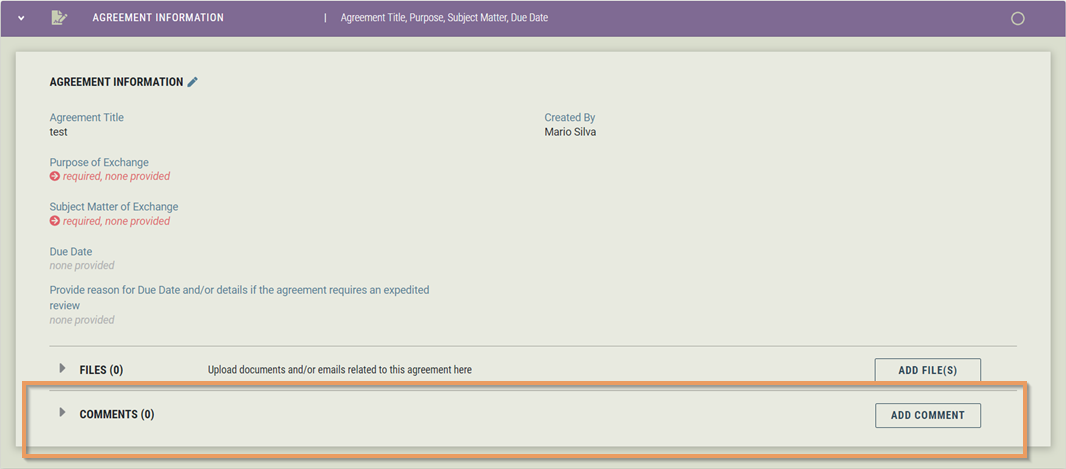
View Comment(s)
The number next to the Comment will show how many comments are in that particular section.
To view a comment or comments, click on the word "Comments".

New/Reply to Comment
To add a new comment, click the "Add Comment" button located in the comment section.
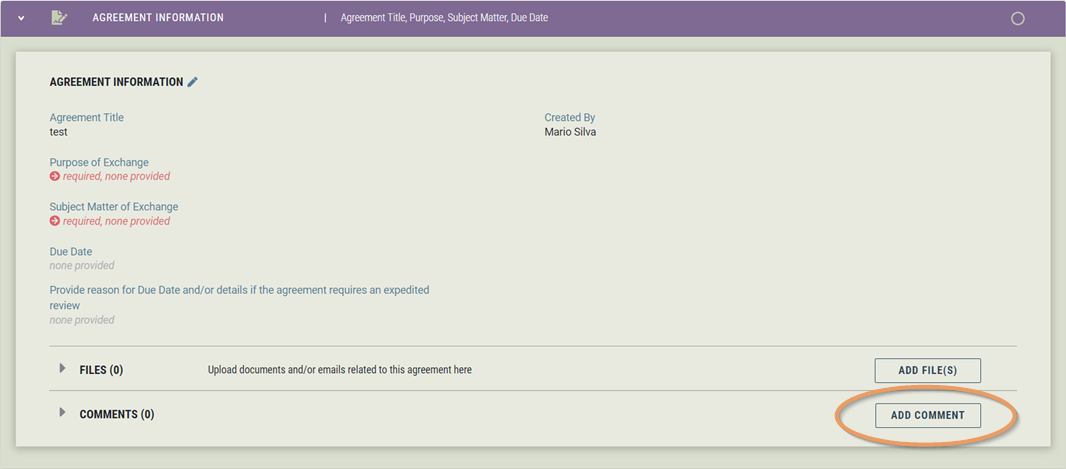
Once clicked, the Comment modal will display. You can add your new comment text and then click submit, which will add the comment to the existing comment thread for that pane or panel.
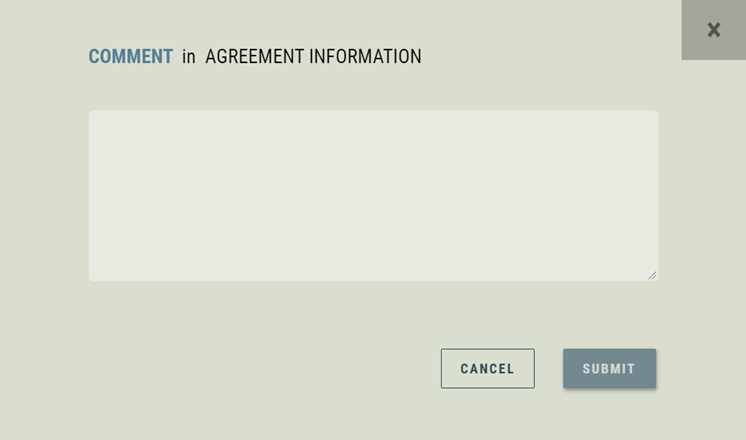
All comments will be shown in a singular thread for the particular pane or panel.
Comment Tags
You may use the following tags to notify additional roles that are in an agreement (you cannot tag individual users):
@ContractNegotiator – Assigned contract negotiator
@PI – Principal Investigator
@Co-PI – Co‑Principal Investigator(s)
@RespSupportStaff – Responsible support staff assigned to the project
@FinancialManager – Departmental Financial Manager (ACRs only)
@OSP – Notification is sent to ospcontracts@vt.edu, not to individual OSP personnel.
Use each tag exactly as written, e.g. "@PI" if you want the PI on the agreement to receive an email notification with your comment.
The Agreement Assignee will automatically receive email notifications for all comments.